

Thanks to generous funding from DPHHS, Montana State Library is providing Beanstack to our library.
Beanstack is an app, for your computer or phone, that helps people track your reading. It works like a fitness tracker, but you can use it to keep track of how much you have read!
- Reading Games: We will use Beanstack to create fun reading challenges. For example, one statewide challenge is to see if we can get to 100,000 books!
- Earn Rewards: As readers log progress in the app, they earn virtual badges, just like in a video game. This makes reading more exciting.
- Easy Tracking: Track what you’ve read, how long you read for, or how many books you finished.
- See Your Progress: The app helps you see how much you’re reading and how close you are to finishing a challenge.
- For Everyone: Parents can even link their kids’ accounts to track reading for the whole family.
- Helpful for Organizers: Libraries can see how well their reading programs are doing.
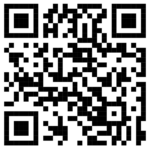
QR Code to Download the Beanstack tracker app.
Click here to use Beanstack on the web.

Click here for help with the Beanstack Mobile App or scroll down for frequently asked questions.
How to create an account in the app.
The Beanstack mobile app allows you to create an account with participating libraries, or to create an independent account on Beanstack Go.
Follow the steps below to create an account with your local library:
- Upon opening the app, tap “Find your school or library” and enter your organization’s name in the search box.
- Find and tap the accurate organization name to be taken to their sign-in page. Keep in mind that only participating libraries will appear here.
- If you do not see your local community organization, tap the back button at the top-left and follow the instructions below for creating an independent account with Beanstack Go.
- Tap “Sign up!” at the bottom of the screen.
- Follow the prompts to create your account and add readers. All Beanstack sites collect first name, last name, password, and age, and then specify additional required or optional account and reader information on a case-by-case basis.
Follow the steps below to create an independent account on Beanstack Go:
- Upon opening the app, tap “Log in with Beanstack Go.”
- Tap “Sign Up!” at the bottom of the screen and then confirm that you are 13 or older.
- Children under 13 are not allowed to create an account, but can be added to an account as a reader after account creation.
- Follow the prompts to create your account and add readers.
Note: Beanstack Go accounts cannot be linked to any school or library system. If your school or library uses Beanstack, make sure to select “Find your school or library” and follow the first set of instructions above.
How to view and register for challenges in the app.
When you create an account in the mobile app, you are automatically prompted to enroll in at least one active challenge. Once your account is live and you’re inside the app, follow the steps below to view and register for additional challenges.
- From the home screen, you can scroll through all your current challenges at the top of the screen, under the streaks message. You can tap “View All” next to Current Challenges or the “Discover” icon at the bottom of your screen to view the full Challenges tab.
- The screen defaults to show you all current and upcoming published challenges available to your age/grade group. To view past or ignored challenges, tap the dropdown labeled “Current” and select either “Past” or “Ignored.”
- With “Current” selected, scroll down past the challenges you’re already enrolled in to see the More Challenges section, which shows other available challenges you have yet to sign up for.
- If you’d like to learn more about a challenge, tap the challenge card to view a brief description and see all the badge types included in the challenge.
- To enroll in an available challenge, tap the challenge card and then tap “Join Challenge.”
- If you’d like to ignore a challenge, tap the challenge card and then tap Ignore in the upper righthand corner of the challenge card screen.
How to log reading in the mobile app.
On your school or library site, you can log your reading on the Beanstack mobile app. Follow the steps below to do so:
Log w/o a title
- After logging into your library or school account, select the “+” plus icon near the bottom. You can do this from anywhere in the app.
- Next, select the “Reading” option.
- If needed, you’ll be prompted to select one or more readers to log for and then select “Choose Readers.”
- You can log without a title by selecting “Log Without a Title.”
- Here, you can enter the number of minutes, pages, and books read, and the date you’re logging for.
- Note: Selecting a date logs the reading for just that day.
- Click “Done.”
Log a specific title
- Confirm the title and number of pages.
- Then select “Save” From here, you’ll have three options to log your reading:
- Choose “Quick Complete” to log the book without tracking minutes or pages read.
- Choose “Start Timer” to begin a reading session and select the “I’m Done Reading” button when you’re finished.
- Choose “Log Reading” to track additional info, like minutes and pages read, or a different calendar date for your session.
- Click “Done.”